1. Introduction: Linear Algebra and Coordinate Systems
Welcome to the linear algebra series.
This series assumes no prior knowledge of linear algebra.
If you can add, subtract, multiply and divide, you have everything you need to start, and I'll explain every symbol the first time it shows up.
The main target audience is game and graphics programmers, but developers in other domains (web, embedded, AI, etc.) are of course welcome to follow along as well.
It doesn't matter if you're thinking of switching careers to game development, want to make a game as a hobby, or just want to advance in your own field.
You're all welcome.
This series is also the foundation for the upcoming Slang, GLSL, Vulkan and OpenGL series.
Those series will throw words like "normalize the normal", "multiply by the view matrix" or "the projection flips Y" at you all the time.
After this series, none of that will be magic anymore.
1.1 What is linear algebra?
In plain words, linear algebra is the math of things you can add together and scale.
That sounds almost too simple, but a surprising number of things fit that description:
- Lists of numbers, like a position or a color .
- Arrows in space, like "walk 3 meters east and 2 meters north".
- The transformations between them, like "rotate everything by 30°" or "make everything twice as big".
The lists of numbers are called vectors (chapter 2), and the transformations are written as grids of numbers called matrices (chapter 6).
The word "linear" comes from the fact that these transformations keep straight lines straight.
A rotated square is still made of straight edges, and a scaled triangle is still a triangle.
Why graphics is built on it
A 3D model is nothing more than a big list of points (called vertices) plus information about which points form triangles.
Every frame, the GPU takes every vertex of every model and multiplies it by several matrices: one to place the model in the world, one to look at the world from the camera, and one to squash the 3D view onto your flat 2D screen.
Let's do the math for a single character with 20,000 vertices running at 60 frames per second:
That's over a million vertex transformations per second for one character, and a game scene has hundreds of objects.
Lighting, shadows, cameras, physics and animation are all built from the same few operations you'll learn here.
If you understand those operations, you understand what your GPU spends most of its day doing.
1.2 What fields is this useful for?
Linear algebra isn't just for games.
Here are some of the fields where it shows up every day:
- Game Developers: matrix transformations (translations, rotations, scaling, shears), 3D projections and camera systems, time deltas for physics integration, collision detection, physics engines (rigid bodies, constraints), graphics rendering pipelines, skeletal animations, and inverse kinematics.
- Computer Vision: image transformations, feature detection, camera calibration, pose estimation, and homography matrices.
- Physics & Scientific Computing: solving systems of equations in mechanics, electromagnetism, fluid dynamics, and simulations.
- Signal & Audio Processing: filters, Fourier analysis, audio effects, compression algorithms, and noise reduction.
- Data Science: handling high-dimensional datasets, covariance matrices for understanding feature relationships, feature transformations and normalization, principal component analysis (PCA) for dimensionality reduction, and singular value decomposition (SVD) for data compression and recommendation engines.
- Construction & Civil Engineering: coordinate systems and transformations for surveying and BIM/CIM, area and volume calculations, structural load analysis via matrices, safety factor computations, and finite element modeling for stress and strain.
- Embedded Systems: efficient matrix operations for real-time sensor fusion, state estimation (Kalman filters), control systems, memory optimization for vectorized computations, and fixed-point arithmetic implementations.
- Cybersecurity: cryptography (especially lattice-based and elliptic curve methods), encryption and decryption algorithms, hash functions with linear properties, side-channel attack analysis, and secure multi-party computation.
- Architecture & CAD/3D Design: structural analysis (finite element methods), building information modeling (BIM), and complex geometric transformations.
- Finance & Quantitative Analysis: portfolio optimization, risk modeling, linear programming, and solving large systems for asset pricing or Monte Carlo simulations.
- Bioinformatics & Computational Biology: sequence alignment, protein structure prediction, population modeling, and analyzing genomic data matrices.
- Machine Learning & AI: neural network layers (weight matrices and forward/backward passes), linear and logistic regression, dimensionality reduction with PCA/SVD, recommendation systems, clustering (k-means via distance matrices), and optimization via gradients and Hessians.
- Robotics & Automation: forward and inverse kinematics, robot arm control, path planning, sensor fusion, and transformation matrices for coordinate frames.
Even if your field isn't listed here, chances are that linear algebra plays a role behind the scenes in the tools and libraries you use every day.
1.3 How this series is organized
The series has 13 chapters.
Each one builds on the previous ones, so I recommend reading them in order:
- Introduction: Linear Algebra and Coordinate Systems — this chapter: a math refresher and how we describe positions with numbers.
- Vectors — arrows and lists of numbers, adding them, scaling them and blending between them.
- Length, Distance and Normalization — how long a vector is, how far apart two points are, and unit vectors.
- The Dot Product — measuring how much two directions agree; the heart of lighting.
- The Cross Product — finding a direction perpendicular to two others; triangle normals.
- Matrices and Matrix–Vector Multiplication — grids of numbers that transform vectors.
- Matrix Multiplication and the Transpose — chaining transformations together.
- Linear Transformations: Scale, Rotation, Shear and Reflection — the basic building blocks of movement.
- Homogeneous Coordinates and Translation — the fourth coordinate that lets matrices move things.
- Determinants and Inverse Matrices — how much a matrix stretches space, and how to undo it.
- Coordinate Spaces and the Camera — object, world and view space, and the lookAt matrix.
- Projection — turning a 3D scene into a 2D image, for both OpenGL and Vulkan.
- Rotations and Quaternions — rotating smoothly without gimbal lock.
How each chapter is laid out
From chapter 2 onwards, every chapter follows the same pattern:
- What the formula is: the idea stated cleanly in math.
- How it works: why the formula makes sense, followed by a fully worked numeric example where I show every arithmetic step.
- Use in graphics programming: where you'll actually meet it in games and renderers, often with shader code.
- Other uses: where the same idea appears outside graphics.
- Code: the C++ functions we add to our math library, plus a tiny test program and its expected output.
- Summary and Challenges: a short recap, then exercises to check yourself.
The challenges are marked by difficulty.
★ means a pen-and-paper calculation, ★★ means writing code, and ★★★ means thinking deeper or extending the idea.
I don't give an answer key, but the code challenges tell you what output to expect, so you can check yourself.
Reading the shader code
Shader examples are shown in three languages: Slang, GLSL and HLSL.
Slang is shown by default; click the GLSL or HLSL tab to see the same code in that language.
For example, here is a tiny function that converts an angle and a radius into a point on a circle:
float2 pointOnCircle(float angleDeg, float radius) {
  float a = radians(angleDeg);
  return float2(cos(a), sin(a)) * radius;
}
vec2 pointOnCircle(float angleDeg, float radius) {
float a = radians(angleDeg);
return vec2(cos(a), sin(a)) * radius;
}float2 pointOnCircle(float angleDeg, float radius) {
float a = radians(angleDeg);
return float2(cos(a), sin(a)) * radius;
}
Don't worry about understanding this yet.
By the end of this chapter you'll know what radians, cos and sin do, and float2 and vec2 (a pair of numbers) are the topic of chapter 2.
Notice that all three languages have radians, sin and cos built in, so you never need to write those yourself on the GPU.
The C++ library we build: linalg.hh
Throughout the series we'll build a small C++ math library in a single header file called linalg.hh.
Each chapter adds the functions it teaches, so by chapter 13 you'll have a complete library with vectors, matrices, cameras, projections and quaternions.
It's written in plain C++20 with no dependencies other than the standard library, so any modern compiler works.
I recommend typing it up yourself chapter by chapter, but if you want to compare your version or skip ahead, the finished header is here: linalg.hh.
The test programs are always a single main.cc next to linalg.hh.
With GCC or Clang, compile and run them like this:
g++ -std=c++20 -Wall -O2 main.cc -o main
./main
clang++ -std=c++20 -Wall -O2 main.cc -o main
./main
On Windows with Visual Studio, create an empty C++ console project, add both files, and set Project → Properties → Configuration Properties → C/C++ → Language → C++ Language Standard to ISO C++20 Standard (/std:c++20).
Then press Ctrl + F5 to build and run.
If you prefer the command line, open the Developer Command Prompt and run cl /std:c++20 /EHsc main.cc.
If you're new to programming, it's completely fine to skip the code sections at first and focus on the math.
The math doesn't depend on the code.
1.4 Math refresher
Before we get to vectors, let's make sure the few pieces of school math we'll use later are fresh.
If you already know all of this, skim the section and jump to the coordinate systems.
Negative numbers and variables
Numbers can be below zero.
Think of a thermometer: 5 degrees colder than 2 °C is °C.
A few rules come up constantly:
In words: subtracting a negative number is the same as adding, and multiplying two negative numbers gives a positive number.
A variable is a letter that stands for a number.
If , then .
Notice that means "2 times ": in math, writing things next to each other means multiplication.
Sometimes we write the multiplication explicitly as a dot, , or as a cross, .
For single numbers all three mean the same thing, but be warned: for vectors, the dot and the cross will become two very different operations (chapters 4 and 5).
We'll also use small numbers or letters written below and to the right of a variable, called subscripts.
They are just labels: and are two different variables, read "x one" and "x two", and means "the x part of v".
Squares and square roots
The square of a number is the number multiplied by itself, written with a small 2:
A square is never negative, because a negative times a negative is positive.
The square root goes the other way: it's the non-negative number that, squared, gives .
So , and (the symbol means "approximately equal").
The square root of a negative number doesn't exist in ordinary numbers, which will matter later when a program accidentally takes sqrt of something negative.
One classic trap: the square root of a sum is not the sum of the square roots.
The Pythagorean theorem
Take a triangle with one 90° corner (a right triangle).
The two sides touching the 90° corner are called the legs, and , and the long side opposite the corner is called the hypotenuse, :
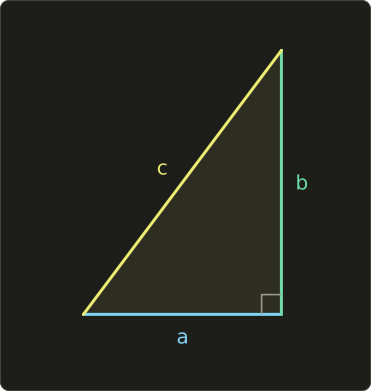
The Pythagorean theorem says:
Example: with legs and :
This is how we measure straight-line distances.
If you walk from the point to the point , you move to the right and up.
Those two moves are the legs of a right triangle, so the straight-line distance is .
Chapter 3 turns exactly this idea into the length of a vector.
Degrees and radians
You probably learned to measure angles in degrees: a full turn is 360°, a half turn is 180°, and a right angle is 90°.
Math libraries and shaders, however, measure angles in radians.
One radian is the angle you get when you walk along the edge of a circle a distance equal to its radius.
The edge of a whole circle (its circumference) is long, where and is the radius.
So a full turn is radians:
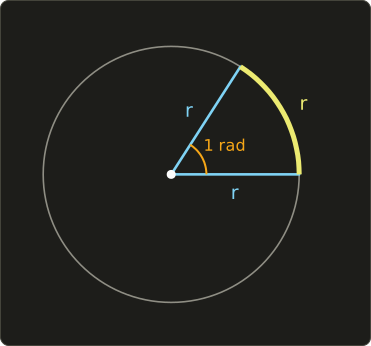
From that, the two conversion formulas follow:
Example: convert 45° to radians.
Example: convert 2 radians to degrees.
Why bother with radians?
Because they make the formulas simpler.
For example, the length of an arc is just when (the Greek letter theta, our usual name for an angle) is in radians.
A wheel with radius 0.5 m that turns by 4 radians rolls meters.
More practically: std::sin, std::cos, and the shader functions sin and cos all expect radians.
Passing degrees by accident is one of the most common bugs in graphics code, so in this series every angle in every formula and every piece of code is in radians.
Sine, cosine and tangent
Draw a circle with radius 1 centered on the origin; this is called the unit circle.
Start at the point on the right edge, and walk counter-clockwise around the circle by an angle .
The point where you end up has coordinates .
That's the definition: cosine is the horizontal position and sine is the vertical position of that point.
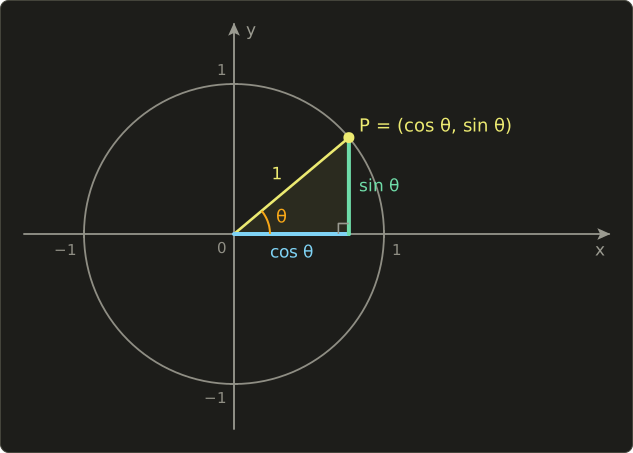
If you drop a line straight down from P to the x axis, you get a right triangle with hypotenuse 1, a horizontal leg and a vertical leg .
Pythagoras then gives us a very useful fact:
For a circle of radius instead of 1, everything simply scales: the point is .
Example: a point 10 units from the origin at an angle of 30° is at
The tangent is the ratio of the two:
It's the slope of the line from the origin to P: how much you go up for each step to the right.
At 90° the line is vertical, , and the tangent is undefined (you'd divide by zero).
Here are the values worth recognizing on sight:
| Degrees | Radians | |||
|---|---|---|---|---|
| 0° | ||||
| 30° | ||||
| 45° | ||||
| 60° | ||||
| 90° | undefined | |||
| 180° | ||||
| 270° | undefined | |||
| 360° |
You can check any row with the fact above.
For 30°: .
The signs follow from where P is.
On the left half of the circle the x coordinate is negative, so cosine is negative there.
On the bottom half the y coordinate is negative, so sine is negative there.
For example, at 120° the point is on the upper left: and .
Tip: Going around the circle by brings you back to the same point, so and . That's why sine and cosine are perfect for anything that repeats: spinning, bobbing, pulsing lights, waves.
Sum notation with Σ
When we add up many similar terms, writing them all out gets tedious.
The Greek capital letter sigma, , is shorthand for "add these up":
Read it as: "for going from 1 to 4, add up ".
The variable below the sigma () is where we start, the number on top (4) is where we stop, and the expression on the right is what we add each time.
If you program, it's simply a for loop:
float sum = 0.0f;
for (int i = 1; i <= 4; ++i) {
  sum += i;
}
// sum == 10
The expression can use subscripted variables.
With and :
Keep this one in mind: multiplying matching numbers and adding them up is exactly the dot product of chapter 4.
1.5 Coordinate systems
A coordinate system is an agreement about how to describe a position with numbers.
It has a starting point, called the origin, and one or more axes, which are directions along which we measure.
The numbers that describe a position are its coordinates.
One dimension: the number line
The simplest coordinate system is a single line with 0 in the middle, positive numbers to the right and negative numbers to the left:
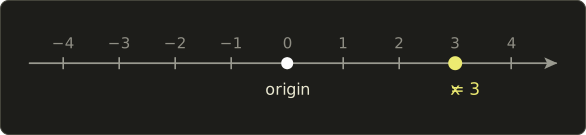
One number is enough to say where a point is.
In graphics, one-dimensional coordinates show up as time in an animation, a position along a slider, or the depth of a pixel.
Two dimensions: the Cartesian plane
Put a second number line through the origin at a right angle to the first, and you get the Cartesian plane (named after René Descartes).
The horizontal axis is the x axis, the vertical axis is the y axis, and every point is described by a pair :
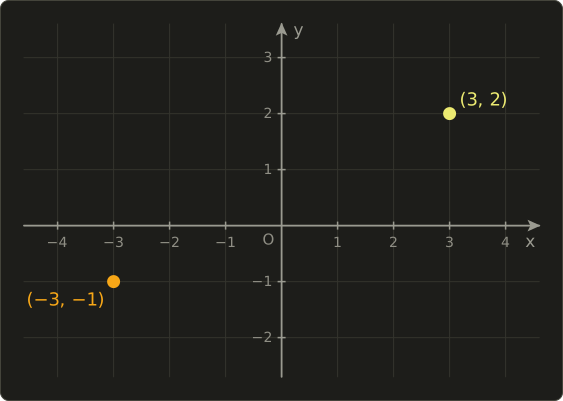
To find , start at the origin, go 3 to the right and 2 up.
To find , go 3 to the left and 1 down.
The order matters: and are different points, and by convention x always comes first.
Three dimensions
Add a third axis, z, at a right angle to both x and y, and you can describe any position in space with three numbers .
In this series, +X points right, +Y points up, and +Z points out of the screen, towards you:
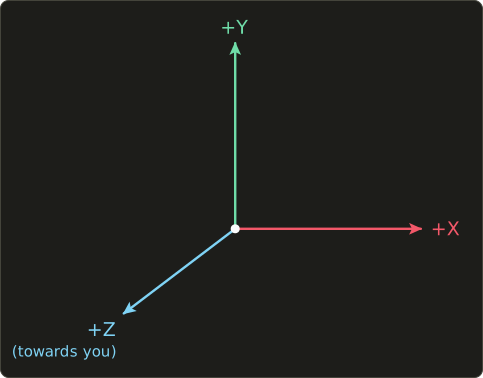
The point means: from the origin go 2 to the right, 3 up, and 4 towards you.
Right-handed and left-handed systems
Once x points right and y points up, there are two possible choices for z: towards you or away from you.
Both are valid, and both are used in practice, so it's important to know which one you're in.
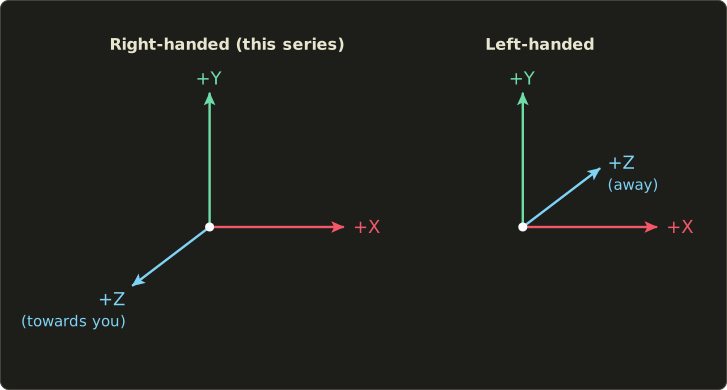
The names come from the right-hand rule.
Hold up your right hand, point your thumb along +X (right) and your index finger along +Y (up), then bend your middle finger so it's perpendicular to both.
Your middle finger now points towards you: that's +Z in a right-handed system.
Do the same with your left hand and the middle finger points away from you: that's a left-handed system.
The same hand also tells you which way a positive rotation goes.
Point your right thumb along an axis, and your fingers curl in the direction of positive rotation.
Equivalently: looking from the positive end of the axis back towards the origin, a positive rotation is counter-clockwise.
That's the convention we use for every rotation in this series.
This series uses a right-handed system, like the traditional OpenGL convention and tools like Blender and Maya.
DirectX (by tradition), Unity and Unreal Engine use left-handed systems.
Some tools also disagree about which axis is "up": Blender and Unreal use Z-up, while Maya, Unity and OpenGL-style code usually use Y-up.
When you import a model from another tool and it shows up mirrored or lying on its back, a handedness or up-axis mismatch is almost always the reason.
Screen and pixel coordinates
Screens use yet another convention.
Pixel coordinates usually start at the top-left corner of the window, with x going right and y going down:
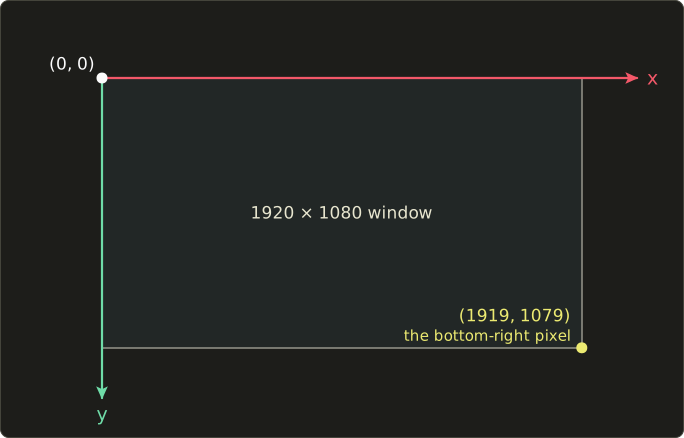
This is how image files, operating systems, and most UI libraries count pixels: row 0 is the top row.
It's the opposite of the math convention, where y goes up, so converting between the two means flipping y.
On a window pixels tall, a y coordinate measured from the top becomes measured from the bottom.
Graphics APIs add their own twist.
OpenGL's normalized device coordinates have y pointing up, and its window coordinates start at the bottom-left.
Vulkan's clip space, on the other hand, has y pointing down.
We'll deal with that properly in chapter 12; for now, just remember that "which way is y?" is a question you always need to ask.
1.6 Notation used in this series
Here's every symbol you'll meet in the series, in one place.
Don't try to memorize it now; come back to this table whenever a symbol looks unfamiliar.
| Concept | Notation | Example | Chapter |
|---|---|---|---|
| Scalar (a single number) | italic letter | , an angle | 1 |
| Vector | bold lowercase letter | 2 | |
| Component of a vector | subscript | , | 2 |
| Length of a vector | double bars | 3 | |
| Unit vector (length 1) | hat | 3 | |
| Dot product | centered dot | 4 | |
| Cross product | cross | 5 | |
| Matrix | bold uppercase letter | 6 | |
| Element of a matrix | row, column subscript | is row , column | 6 |
| Transpose | superscript T | 7 | |
| Inverse | superscript −1 | 10 |
1.7 Use in graphics programming
Coordinates are how we describe literally everything a renderer works with.
Vertices.
A model is a list of vertex positions.
The classic "hello triangle" that every graphics tutorial starts with is just three points:
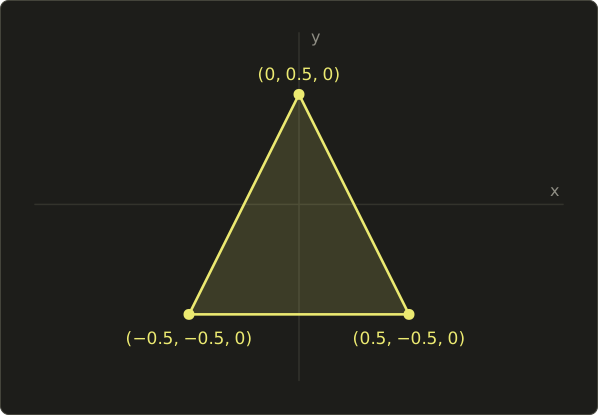
A character model is the same thing with tens of thousands of points.
When you move, rotate or animate the model, you're computing new coordinates for those points.
Pixels.
Every pixel on the screen has an integer coordinate, like for the center of a 1920×1080 window.
A fragment (pixel) shader runs once per pixel and can read its own coordinate.
Texture coordinates (UV).
To wrap an image around a model, each vertex also stores a 2D coordinate into the image, called UV.
U is the horizontal direction and V the vertical one, and both go from 0 to 1 no matter how many pixels the image has:
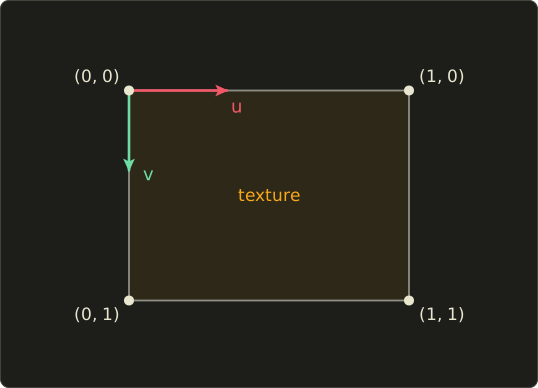
Because UVs are measured in fractions of the image, the same model works with a 256×256 texture and a 4096×4096 one.
To find the actual pixel (called a texel) in an image of size , multiply: .
For example, on a 512×256 texture is texel .
Note: In Vulkan and Direct3D, UV is the top-left of the image, as in the diagram above. In OpenGL, refers to the first row of texels you uploaded, and OpenGL treats that row as the bottom. That's why many OpenGL programs flip images vertically when loading them.
Angles.
Rotation speeds, camera field of view, and sun direction are all angles.
Artists and designers usually think in degrees ("a 60° field of view"), while the math wants radians, so converting with radians() is something you'll do all the time.
1.8 Other uses
Coordinate systems are everywhere once you look for them.
- Maps and GPS: a position on Earth is a pair of angles, latitude and longitude, given in degrees. To compute distances or directions with them, you first convert them to radians.
- Spreadsheets: a cell like C5 is a coordinate, column C and row 5. Like pixels, rows count downwards from the top.
- Plotting: every chart, from a stock price graph to a scientific plot, maps data values to x and y coordinates on a plane.
- CNC machines and 3D printers: they are driven by G-code, a list of coordinates the tool head should move to, such as
G1 X10 Y20 Z0.2(move in a straight line to x = 10 mm, y = 20 mm, z = 0.2 mm).
1.9 Code
Let's start our linalg.hh header.
For now it only contains the value of and the two angle conversion functions from section 1.4.
Create a file called linalg.hh with this content:
// linalg.hh — 線型代数チュートリアルシリーズで作る数学ライブラリ
// Math library built throughout the Linear Algebra tutorial series.
//
// 規約 / Conventions:
//   * 右手座標系 / right-handed coordinate system
//   * 列ベクトル、行列は左から掛ける / column vectors, matrices multiply from the left: v' = M * v
//   * 列優先メモリ配置(GLSLと同じ) / column-major storage (same as GLSL)
//   * 角度はラジアン / angles are in radians
#pragma once

#include <cmath>

//------------------------------------------
// 角度 / Angles (chapter 1)
//------------------------------------------

constexpr float PI = 3.14159265358979323846f;

// 度からラジアンへ / degrees to radians
constexpr float radians(float deg) { return deg * PI / 180.0f; }

// ラジアンから度へ / radians to degrees
constexpr float degrees(float rad) { return rad * 180.0f / PI; }
A few notes on the C++:
#pragma oncemakes sure the header is only included once per file, even if several headers include it.<cmath>gives usstd::sin,std::cos,std::sqrtand friends. We'll need it in nearly every chapter.constexprmeans the compiler can compute the value while compiling. If you writeradians(90.0f)with a constant, no work happens at run time at all.- The comments at the top list the conventions of the whole series. Some of them (column vectors, column-major storage) won't make sense until chapter 6; that's fine.
Now the test program.
Create main.cc next to the header:
#include <cstdio>
#include "linalg.hh"

int main() {
  float angles[] = {0.0f, 30.0f, 45.0f, 60.0f, 90.0f};

  for (float deg : angles) {
    float rad = radians(deg);
    printf("%4.0f deg = %.4f rad   sin = %.4f   cos = %.4f\n",
           deg, rad, std::sin(rad), std::cos(rad));
  }

  printf("1 rad = %.4f deg\n", degrees(1.0f));
  printf("PI rad = %.1f deg\n", degrees(PI));
  return 0;
}
Compile and run it with the commands from section 1.3.
You should see:
   0 deg = 0.0000 rad   sin = 0.0000   cos = 1.0000
  30 deg = 0.5236 rad   sin = 0.5000   cos = 0.8660
  45 deg = 0.7854 rad   sin = 0.7071   cos = 0.7071
  60 deg = 1.0472 rad   sin = 0.8660   cos = 0.5000
  90 deg = 1.5708 rad   sin = 1.0000   cos = -0.0000
1 rad = 57.2958 deg
PI rad = 180.0 deg
Compare the numbers with the table in section 1.4; they match.
Look closely at the last angle, though: should be exactly 0, but we got -0.0000.
A float can't store exactly, so radians(90.0f) is a tiny bit more than , and the cosine comes out as roughly , which prints as -0.0000.
This is normal floating-point behavior, not a bug in our code.
The lesson: in graphics code, never test floating-point results with ==; check whether they are close enough instead.
On the GPU you don't need any of this, because Slang, GLSL and HLSL all have radians, degrees, sin, cos and tan built in:
// 1秒に1回、0と1の間を滑らかに明滅させる / pulse smoothly between 0 and 1, once per second
float pulse(float timeSeconds) {
  float angle = radians(360.0) * timeSeconds;
  return 0.5 + 0.5 * sin(angle);
}
// 1秒に1回、0と1の間を滑らかに明滅させる / pulse smoothly between 0 and 1, once per second
float pulse(float timeSeconds) {
float angle = radians(360.0) * timeSeconds;
return 0.5 + 0.5 * sin(angle);
}// 1秒に1回、0と1の間を滑らかに明滅させる / pulse smoothly between 0 and 1, once per second
float pulse(float timeSeconds) {
float angle = radians(360.0) * timeSeconds;
return 0.5 + 0.5 * sin(angle);
}
Because goes between −1 and 1, goes between 0 and 1.
At seconds the angle is , so the pulse reaches its peak .
1.10 Summary
- Linear algebra is the math of things you can add and scale: lists of numbers, arrows, and the transformations between them.
- Every vertex of every model passes through several matrices every frame, which is why graphics is built on linear algebra.
- The Pythagorean theorem gives straight-line distances.
- Angles in this series are always in radians: rad = 180°. Convert with
radians()anddegrees(). - On the unit circle, the point at angle is , and .
- means "add these up", just like a
forloop. - We use a right-handed coordinate system: +X right, +Y up, +Z towards the viewer. DirectX, Unity and Unreal use left-handed ones.
- Pixel coordinates usually have y going down; Vulkan's clip space does too (chapter 12).
- Texture coordinates (UV) go from 0 to 1 across the image.
1.11 Challenges
- ★ Convert 120°, 270° and 15° to radians (as fractions of ), and convert , and to degrees.
- ★ A right triangle has legs 6 and 8. How long is the hypotenuse? How far is the point from the origin, and how far is from ?
- ★ Using the table and the sign rules, write down the coordinates of the points on the unit circle at 150°, 225° and 300°.
- ★ Compute and .
- ★ A tool uses +X right, +Y up and +Z pointing into the screen. Is it right-handed or left-handed? What about +X right, +Y into the screen, +Z up?
- ★★ Write a program that prints and for every angle from 0° to 360° in steps of 15° (25 lines). Check that the 90° line shows sin = 1.0000, the 180° line shows cos = -1.0000, and the 360° line shows cos = 1.0000.
- ★★★ In a 1920×1080 window with pixel y going down, a point sits at pixel . Find its coordinates in a system where the window's center is the origin, y goes up, and both axes are scaled so the window spans −1 to 1 (treat pixel coordinates as continuous). Then write the general formula for any pixel in a window.
コメント(0)
まだコメントはありません。
ログインするとコメント出来ます。